Long video in, short clips out
AI clipping: how to clip for creators
Before you start: MomentCut works from the video file (MP4, MOV or WebM, up to 60 minutes), uploaded from your device (up to 30 GB, 20 GB on the free trial) or through a direct link to that file (up to 2 GB). YouTube, Vimeo or other platform links are not accepted.
Streamers, podcasters and brands pay clippers to turn their long videos into short clips. The job is to spot the right moments, cut them vertical with captions, then post them under the campaign’s rules. AI saves you time on finding and editing; picking the clips and following the rules is still on you.
What clipping is
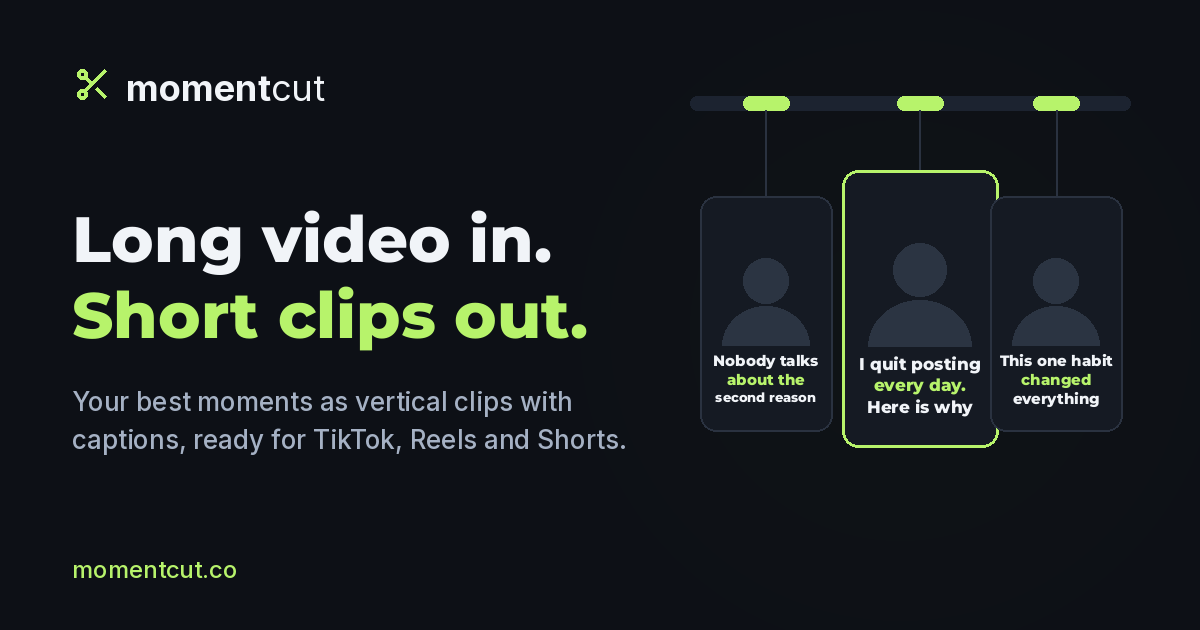
A creator streams for three hours or records an hour-long podcast. They do not have time to pull twenty clips a week out of it, so they open a campaign: clippers cut the videos, post the clips on their own TikTok, YouTube Shorts, Instagram Reels or X accounts, and get paid under the terms the creator set.
On campaign marketplaces such as Whop’s Content Rewards, the most common model pays per 1,000 views, with a cap per video and an approval by the campaign owner before any payout.
Finding campaigns
Campaigns live on those marketplaces, on some creators’ Discord servers, or come from reaching out to a channel whose content you know well. Before you commit, read the whole brief: accepted platforms, clip length, required mentions and hashtags, banned content, remaining budget.
Earnings depend on views, on the campaign budget and on each clip being approved. Plenty of clips earn nothing, and no tool can guarantee an income. Be wary of any offer that asks you to pay to join a campaign.
The workflow with MomentCut
Everything starts from the source file. Most campaigns share the creator’s videos in a folder: download the file, then upload it to MomentCut. If a campaign only gives you a channel address, ask the owner for the files, since YouTube links are not accepted by MomentCut.
The analysis transcribes the video, suggests the passages that stand alone with a score, reframes to 9:16 with face tracking and burns in the captions. You keep the best ones, adjust the start to the second, and export in Full HD.
- Source file supplied by the creator, or your own authorised recording
- Moments spotted, scored and ranked by AI
- Vertical 9:16 reframing with face tracking
- Burned-in captions, plus a suggested title, description and hashtags
Rules to respect
The brief is the law: a clip that misses the required mention or runs too long gets rejected, whatever its views. Only clip the campaign’s content, or a creator who has given you permission; reposting someone else’s videos without it exposes you to copyright claims and account strikes.
Platforms also limit the reach of content that is simply reposted. Real editing (a clean cut, a hook, captions) makes the difference, and bought or bot-driven views get clips rejected.
What keeps people watching
The first two seconds decide everything: open on the strong line, not on the question that leads to it. One idea per clip, captions readable with the sound off, full-screen 9:16, and a clean ending rather than a sentence cut in half.
Step by step: from a stream to campaign clips
Read the campaign brief
Note the accepted platforms, the required length, the mandatory mentions and hashtags, and what is banned. Those rules decide whether a clip gets approved far more than its views do.
Upload the source file
On “Your video”, click “Choose a video” and pick the file the creator supplied (MP4, MOV or WebM, up to 30 GB and 60 minutes; 20 GB on the free trial), or paste a direct link if they gave you the address of the file itself. Split a longer stream into parts under an hour first.
Steer the selection
In “Settings”, pick a “Target length” of 30 seconds and “Up to” 10 clips so you have a choice. Under “Topics to focus on”, list the themes the campaign wants; “Describe the moment to find” targets a specific scene, such as a reaction or an announcement.
Run the analysis
Click “Next: find my clips”. Once the upload is done you can close the page: the result waits for you in “My projects”.
Keep the best hooks
In “Results”, the “AI score” breaks down into hook, pacing, value and trend. Drop the clips that need context, then move the “Start (seconds)” so the clip opens on the strong line.
Caption, export and post
Check the text in “Edit subtitles”, then click “Create video file”. Reuse the “Post text”, adding the mentions and hashtags the campaign requires, and post from your own account.
Recommended settings for a campaign
- Target length: 30 seconds, unless the brief asks for something else.
- 9:16 with “Face tracking” for a streamer facing the camera; “Fit entire frame” for gameplay or a shared screen.
- “Karaoke · word by word” preset: captions hold a viewer who watches with the sound off.
- “Remove silences” tightens a hesitant stream; if more than 40% of the clip would go, the clip stays whole.
- Advanced settings: set the “Export resolution” to 1080p.
Good to know before you start
- MP4, MOV and WebM files, 30 GB (20 GB on the free trial) and 60 minutes at most; links to a video platform page are not accepted, only a direct link to the file (up to 2 GB).
- The free plan gives you 15 minutes of video once and 3 Full HD exports, with a watermark. Check that the campaign allows it; paid plans remove it.
- Minutes are counted on the length of the source video, not on the number of clips.
- MomentCut does not post anything for you and is not tied to any campaign platform: posting and submitting your clips is up to you.
Upload a campaign’s source file and see which moments come out.
Common questions
How do I get the source video?
Use the file supplied by the creator or the campaign (MP4, MOV or WebM, up to 30 GB and 60 minutes; 20 GB on the free trial). Split a longer stream into parts under an hour first. MomentCut also accepts a direct link to the file itself, not a platform page.
How much can I earn?
There is no typical figure. Income depends on each campaign’s terms, the views you actually get and whether your clips are approved. MomentCut does not pay clippers and is not tied to any campaign platform.
Is the free plan enough to start?
It is enough to try: 15 minutes of video once and 3 Full HD exports, with a watermark. Check the brief to see whether a tool watermark is allowed; paid plans remove it.